🛰️Zafer Satılmış - Aviora

Protocol Test Servers

Desktop tools under Application/AppZMeterGw/Services/Protocol/Test_Server simulate the central side of each stack: JSON/TCP (ProtocolZD), binary TLV/TCP (ProtocolOrionTLV), and JSON/MQTT (ProtocolRigelMq). Use them on a PC on the same LAN as the gateway (or with port forwarding) to exercise ident, alive, pull commands, and MQTT request/response flows without a full backend.

Python 3 TCP Push Listener MQTT Client Auto-Reply & Logs

Which Application Do I Run?

Script Protocol doc Transport Default
ProtocolZD_TestServer.py ProtocolZD TCP — gateway pushes to this machine; tool opens pull client to the gateway Push listen port 8722
ProtocolOrionTLV_TestServer.py ProtocolOrionTLV Same TCP push/pull model as ZD, binary TLV frames Push listen port 8723
ProtocolRigelMq_TestServer.py ProtocolRigelMq MQTT — tool is the backend: subscribe avi/response, publish avi/request Broker 127.0.0.1:1883
Metallix TLV: there is no ProtocolMetallixTLV_TestServer.py in this folder today. Use the Orion or ZD pattern as a reference if you add one, or test Metallix against another harness described in ProtocolMetallixTLV.
Common Prerequisites

  • Python 3 with Tkinter (included with most Windows/macOS installers; on some Linux distros install python3-tk).
  • Working directory: change into Test_Server before running scripts (relative paths and log files are created next to the script).
  • RigelMq only: pip install paho-mqtt — if missing, the process exits with a short message in the terminal.
  • RigelMq only: an MQTT broker reachable from both the PC and the gateway (e.g. Mosquitto on 127.0.0.1:1883 or a LAN IP).

1. ProtocolZD Test Server (ProtocolZD_TestServer.py)

JSON over TCP. Listens on a push port for the gateway connection; after ident, uses pullIP / pullPort to send pull-side JSON.

Install (once)

pip install --upgrade pip
# No extra pip packages required for ZD (stdlib + tkinter only).

Run — Windows (PowerShell)

cd C:\Users\<you>\Aviora\Application\AppZMeterGw\Services\Protocol\Test_Server

python ProtocolZD_TestServer.py
python ProtocolZD_TestServer.py 9000

Run — Linux / macOS

cd /path/to/Aviora/Application/AppZMeterGw/Services/Protocol/Test_Server
python3 ProtocolZD_TestServer.py
python3 ProtocolZD_TestServer.py 9000

Arguments: optional integer port = TCP listen port for incoming gateway push (default 8722).

Typical terminal output

The GUI opens immediately; most logging appears in the window. On startup the console may be quiet. A log file is created in the same folder:

zd_server_log_YYYYMMDD_HHMMSS.txt # Example first lines after device connects (content mirrors the on-screen log): [14:02:01] Server listening on 0.0.0.0:8722 [14:02:05] [RECV] { "function":"ident", ... }

UI workflow

  1. Click Start (or equivalent) to listen on the chosen port.
  2. Point the gateway’s push server IP/port to this machine and port.
  3. After ident, serial / pull fields fill; pull command buttons enable.
  4. Use pull commands to open a TCP client to pullIP:pullPort and send JSON requests.

2. ProtocolOrionTLV Test Server (ProtocolOrionTLV_TestServer.py)

Binary TLV over TCP — same push/pull topology as ZD, different framing (see ProtocolOrionTLV).

Run — Windows (PowerShell)

cd C:\Users\<you>\Aviora\Application\AppZMeterGw\Services\Protocol\Test_Server

python ProtocolOrionTLV_TestServer.py
python ProtocolOrionTLV_TestServer.py 9000

Run — Linux / macOS

cd /path/to/Aviora/Application/AppZMeterGw/Services/Protocol/Test_Server
python3 ProtocolOrionTLV_TestServer.py
python3 ProtocolOrionTLV_TestServer.py 9000

Arguments: optional port (default 8723).

Typical log file

ba_server_log_YYYYMMDD_HHMMSS.txt # Created next to the script; same text as the UI log panel.

UI layout and flow match the ZD test server (push listen → ident → pull commands). Use this binary server when the gateway runs AppProtocolOrionTLV instead of ProtocolZD.

3. ProtocolRigelMq Test Server (ProtocolRigelMq_TestServer.py)

JSON over MQTT. The tool acts as the backend: it subscribes to avi/response (gateway → server) and publishes to avi/request (server → gateway). See ProtocolRigelMq for message shapes.

Install

pip install paho-mqtt

Run — Windows (PowerShell)

cd C:\Users\<you>\Aviora\Application\AppZMeterGw\Services\Protocol\Test_Server

python ProtocolRigelMq_TestServer.py
python ProtocolRigelMq_TestServer.py 192.168.1.10 1883

Run — Linux / macOS

cd /path/to/Aviora/Application/AppZMeterGw/Services/Protocol/Test_Server
python3 ProtocolRigelMq_TestServer.py
python3 ProtocolRigelMq_TestServer.py 192.168.1.10 1883

Arguments: optional broker_ip (default 127.0.0.1), optional broker_port (default 1883). Enter the same broker the gateway uses.

Typical terminal output

After you click Başlat / Start and the broker accepts the connection:

MQTT client başlatıldı – 127.0.0.1:1883 Subscribed to avi/response (gateway → server)

If paho-mqtt is missing:

paho-mqtt kütüphanesi gerekli. 'pip install paho-mqtt' ile yükleyin.

Log file

rigel_mq_server_log_YYYYMMDD_HHMMSS.txt

UI workflow

  1. Set broker IP/port → connect.
  2. When the gateway publishes ident on avi/response, the tool fills device fields and stores transNumber.
  3. Optional auto option sends an ident reply on avi/request with "function":"ident" and response.registered.
  4. Other commands (readout, setting, …) publish JSON to avi/request; gateway answers on avi/response.

Quick comparison (Mermaid)

TCP test servers (ZD and Orion)
flowchart LR
  GW[Gateway]
  TS[Test server push listener]
  PULL[Gateway pull port]
  GW -->|TCP push JSON or TLV| TS
  TS -->|TCP pull JSON or TLV| PULL
MQTT test server (RigelMq)
flowchart LR
  GW[Gateway]
  BR[MQTT broker]
  TS[Test server backend]
  GW -->|publish avi/response| BR
  BR --> TS
  TS -->|publish avi/request| BR
  BR -->|subscribe avi/request| GW

Shared UI Screenshots (TCP Tools — Wireframes)

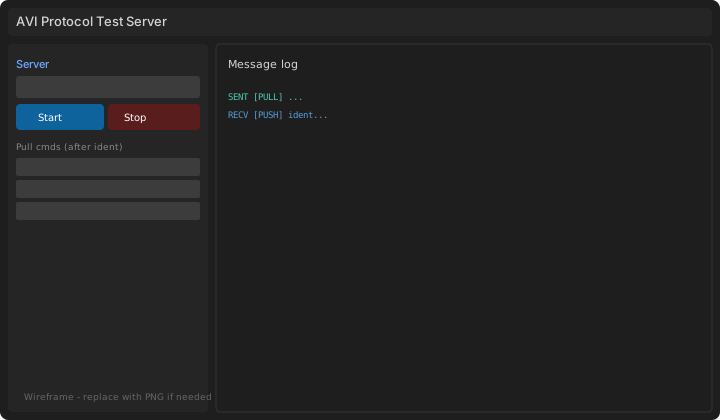
Wireframes below match the ZD and OrionTLV Tk layouts (push port, Start/Stop, pull commands, log). The RigelMq window uses broker fields instead of a push port; conceptually the log panel is the same.

Main window wireframe
Main window. Left: port, Start/Stop, device fields, auto-reply options, pull commands. Right: message log (SENT/RECV colours).
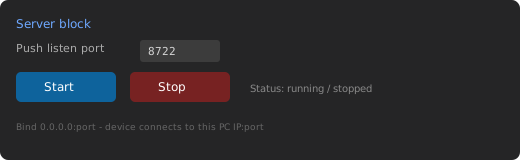
Server port and Start Stop
Server block. Push listen port and Start/Stop.
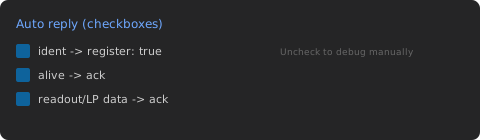
Auto-reply checkboxes
Auto reply. Optional automatic handling for ident / alive / data (exact labels depend on protocol).
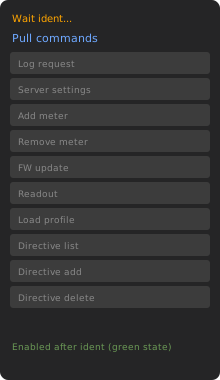
Pull command list
Pull commands (TCP tools). Disabled until ident; then connects to pullIP:pullPort.
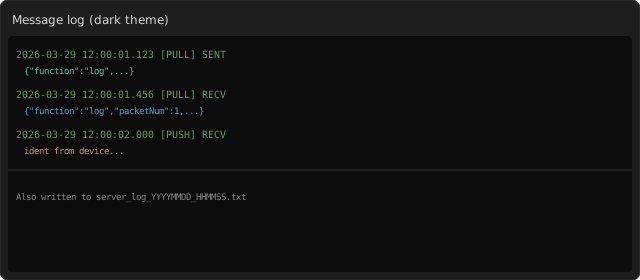
Message log panel
Log panel. Same text is appended to the per-server log file on disk.
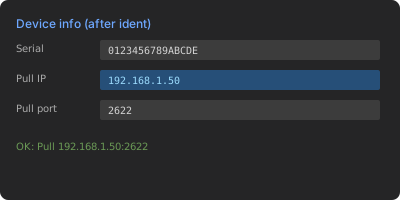
Device info after ident
After ident. Serial, pull IP and port filled from the first ident packet.
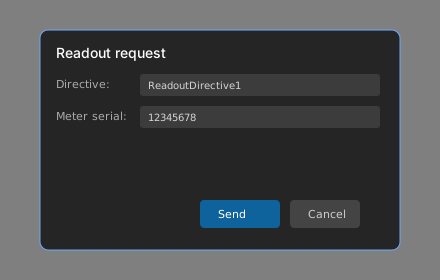
Readout parameter dialog
Example dialog. Readout directive and meter serial (ZD-style).
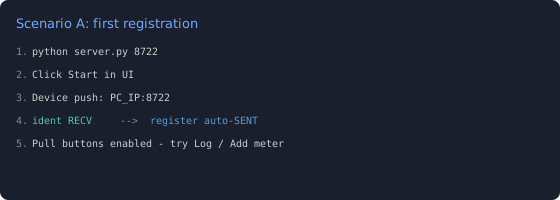
Scenario A steps
Scenario A (TCP). Command line, Start, device push address, ident exchange, pull commands.

Typical TCP Features (ZD / Orion)

  • Push listener — accepts one gateway connection; logs ident, alive, streamed payloads.
  • Auto replies — optional responses for ident / alive / end-of-data (can be disabled per checkbox).
  • Pull client — buttons stay disabled until ident; then opens TCP to pullIP:pullPort and sends JSON (ZD) or TLV (Orion).
  • Multi-packet — for log and similar, reads until packetStream is false where applicable.
  • Loopback — if the device sends 127.0.0.1 as pull IP, the tool may substitute the real TCP peer address.

Sample Scenarios — TCP (ZD Example)

Scenario A — First registration

  1. Run python ProtocolZD_TestServer.py 8722, then click Start.
  2. Configure the gateway push target as this_PC_IP:8722.
  3. Device sends ident; JSON appears in the log; optional auto registration response is sent if enabled.
  4. Pull IP/port update; try Log request or Add meter.

Scenario B — Readout

  1. Use Add meter to register a meter.
  2. Use Readout request and enter directive and serial.
  3. Expect ack on the pull side, then packetized readout on push.

Scenario C — Change server address

  1. Use Server settings to push a new IP/port; on real hardware the device reconnects using the new target.

Push ↔ Pull Timeline (TCP)

Typical ZD-style session
sequenceDiagram
  participant GW as Gateway
  participant TS as Test server
  GW->>TS: ident (push)
  TS->>GW: ident response (push)
  loop heartbeat
    GW->>TS: alive (push)
    TS->>GW: ack (push)
  end
  TS->>GW: setting (pull)
  GW->>TS: ack (pull)